
Overview
This guide covers the essential steps to create a GitHub App for CrewAI Factory integration, along with common troubleshooting steps. CrewAI Factory uses a GitHub App (not a plain OAuth App) to integrate with GitHub. The GitHub App provides fine-grained repository permissions and uses a private key for server-to-server authentication, while also supporting an OAuth-based user authorization flow during installation.GitHub App ≠ OAuth App. While the installation flow uses OAuth for user authorization, the integration itself is a GitHub App. For more details on the difference, see GitHub’s documentation on app types. For modifying your app after creation, see Modifying a GitHub App registration.
Basic Setup
1. Navigate to GitHub App Settings
Personal Account:https://github.com/settings/apps
Organization:
https://github.com/organizations/[ORG-NAME]/settings/apps
Then click “New GitHub App”.
2. Register New GitHub App
Fill in the required information:- GitHub App name: Choose a descriptive name (e.g.,
crewai-factory) - Homepage URL:
https://www.your-domain-for-crewai.com
3. Configure Authorization Callback
- Callback URL:
https://www.your-domain-for-crewai.com/crewai_plus/organizations/github/callback- ⚠️ Critical: This must match your application’s callback endpoint exactly
- ✅ Check “Request user authorization (OAuth) during installation”
- ⬜ Leave “Enable Device Flow” unchecked unless specifically needed
4. Configure Post Installation
- Setup URL (optional):
https://www.your-domain-for-crewai.com/users/github/callback - ✅ Check “Redirect on update”
- This redirects users to the callback URL after installations are updated (e.g., repositories added/removed), ensuring the application stays in sync with permission changes
5. Configure Webhook
- ⬜ Uncheck “Active” under the Webhook section
- No need to fill in the webhook URL at this stage
- Leave webhook secret empty
6. Create the App
Click “Create GitHub App” to finish.Retrieving Credentials
After creating the app, you’ll need to retrieve several credentials:App ID
Located at the top of your app’s settings page. Note this number — it’s required for API authentication.Client ID and Client Secret
- Navigate to your app’s settings page
- The Client ID is displayed on the page
- Click “Generate a new client secret”
- ⚠️ Save both immediately — the client secret is only shown once
Private Key
- Scroll to the “Private keys” section
- Click “Generate a private key”
- A
.pemfile will download automatically (e.g.,your-app-name.2026-04-16.private-key.pem) - ⚠️ Store securely — you cannot download it again
Required Permissions
Go to Permissions and Events and configure the following:Repository Permissions
Required Environment Variables
Store these credentials in your environment configuration:These values belong under the top-level
envVars: and secrets: keys in your Helm values file (my-values.yaml). See the Configuration Guide for the full values file structure.GITHUB_WEBHOOK_SECRET_TOKEN is not required for the basic GitHub App integration. Step 5 above instructs you to leave webhooks inactive — you only need this secret if you later activate GitHub webhooks.Formatting the Private Key
The private key must be set as a single-line string with\n replacing each newline. Use the following command to convert your downloaded .pem file:
GITHUB_APP_PRIVATE_KEY. The result should look like:
Configuring Repository Access
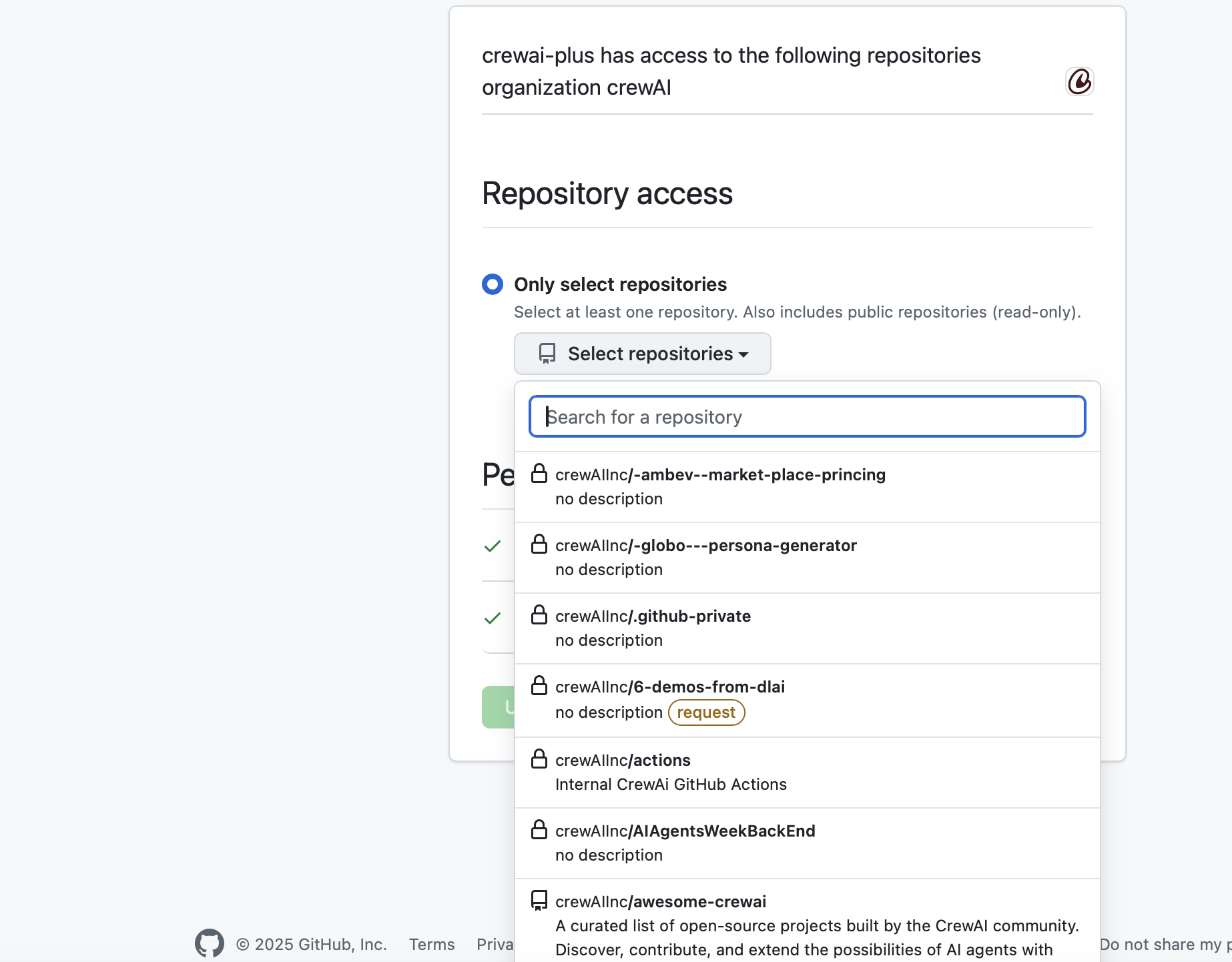
After installing the GitHub App on your account or organization, you’ll need to grant it access to specific repositories.Option 1: Only Select Repositories (Recommended)
- Select “Only select repositories”
- Click “Select repositories” dropdown
- Search and select the repositories you want to integrate with CrewAI Factory
- ✅ Repositories will show with a checkmark when selected
- 🔒 Lock icons indicate private repositories
- 🔔 Yellow “request” badges indicate repositories requiring additional approval
Option 2: All Repositories
- Select this only if you need access to all current and future repositories
- ⚠️ Security consideration: This grants broad access
Verifying Installation
After configuration, you should see:- “Configure GitHub” button in your application
- Connection status showing repositories available for deployment
- Message: “Add repositories to your GitHub App installation to deploy from them”
- Verify the GitHub App is installed on your account/organization
- Check that repositories are selected in the installation settings
- Ensure IP whitelist includes your application servers (see Troubleshooting section)
Troubleshooting
IP Whitelist Issues
If you encounter authentication connectivity problems, the issue may be related to IP whitelisting.Symptoms
- Unable to authenticate with GitHub
- Connection timeouts or refused connections
- OAuth callback failures
- API requests returning 403 Forbidden errors
Resolution Steps
-
Check Organization IP Allow List
- Navigate to your organization settings
- Go to Settings → Security → IP allow list
- Verify that your server/application IP addresses are whitelisted
-
Identify Your Application’s IP Address
-
Add IP to GitHub Allow List
- In GitHub organization settings, go to Security
- Click “IP allow list”
- Click “Add IP allow list entry”
- Enter your application’s IP address or CIDR range
- Add a description (e.g., “CrewAI Factory Production Server”)
- Click “Add”
-
Verify the Configuration
- Test the OAuth flow again
- Check that API calls are succeeding
- Monitor logs for any remaining connection issues
Common IP Whitelist Scenarios
- Cloud Deployments: If using AWS, GCP, or Azure, you may need to whitelist elastic/static IP addresses
- Load Balancers: Whitelist the load balancer’s outbound IP addresses
- Multiple Environments: Ensure dev, staging, and production IPs are all whitelisted
- Dynamic IPs: Consider using IP ranges (CIDR notation) or setting up static IPs
Additional Security Considerations
If your organization has strict IP allow list policies:- Coordinate with your security team before making changes
- Document all whitelisted IPs and their purposes
- Regularly audit and remove unused IP entries
The GitHub App integration does not require
oauth.enabled: true. That setting is only for Built-in Integrations (Gmail, Google Calendar, HubSpot, etc.).