
Overview
This guide walks you through configuring Keycloak as your Single Sign-On (SSO) provider for CrewAI Factory installations.Installing for the first time? The Deployment Guides provide complete end-to-end walkthroughs with infrastructure setup, full
values.yaml examples, and post-install steps. Use the closest guide as a base and replace the auth section with this page’s Helm values.Prerequisites
- A running Keycloak instance (guide based on version 26.4.2)
- Administrative access to your Keycloak realm
- Your CrewAI Factory installation URL
Initial Setup
Open your Keycloak admin console. Navigate to your realm (or create a new one if needed).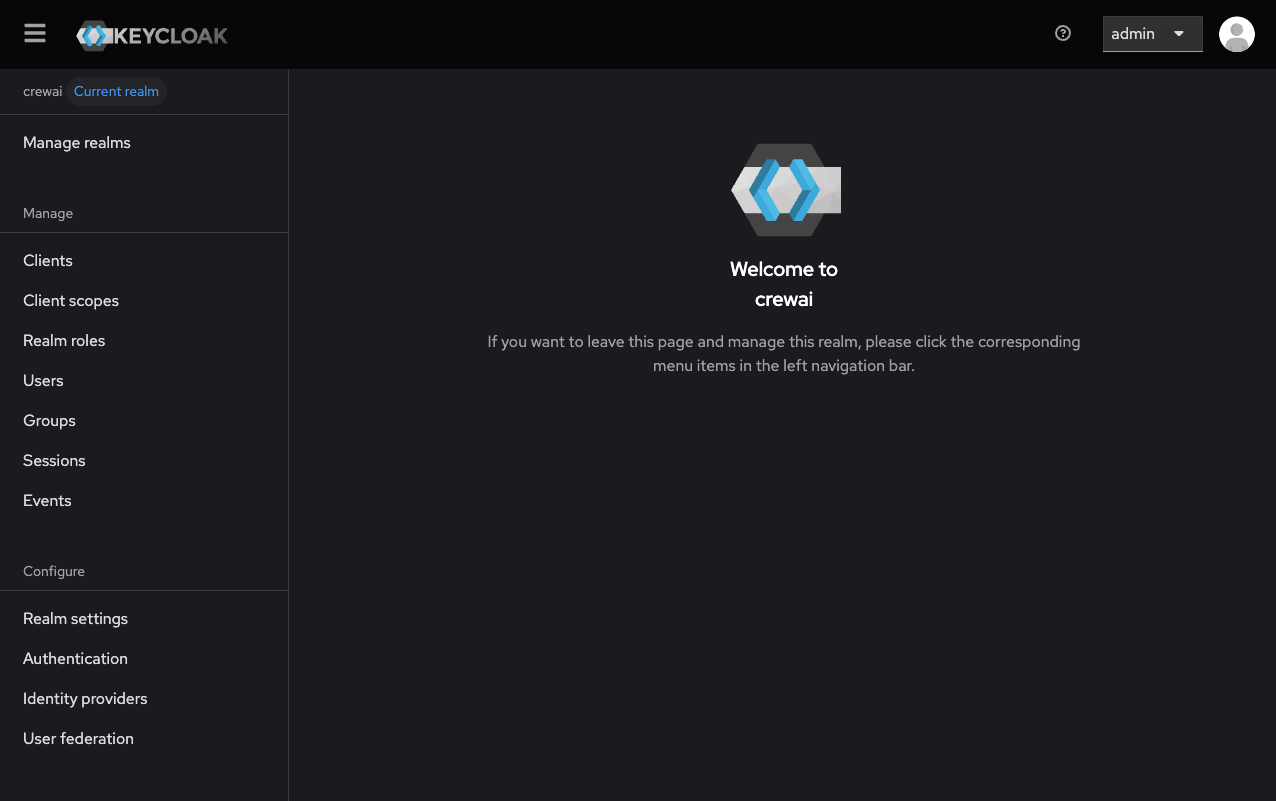
Creating a Client to log in into the web application (AMP)
In the left sidebar, click “Clients”, then click “Create client”.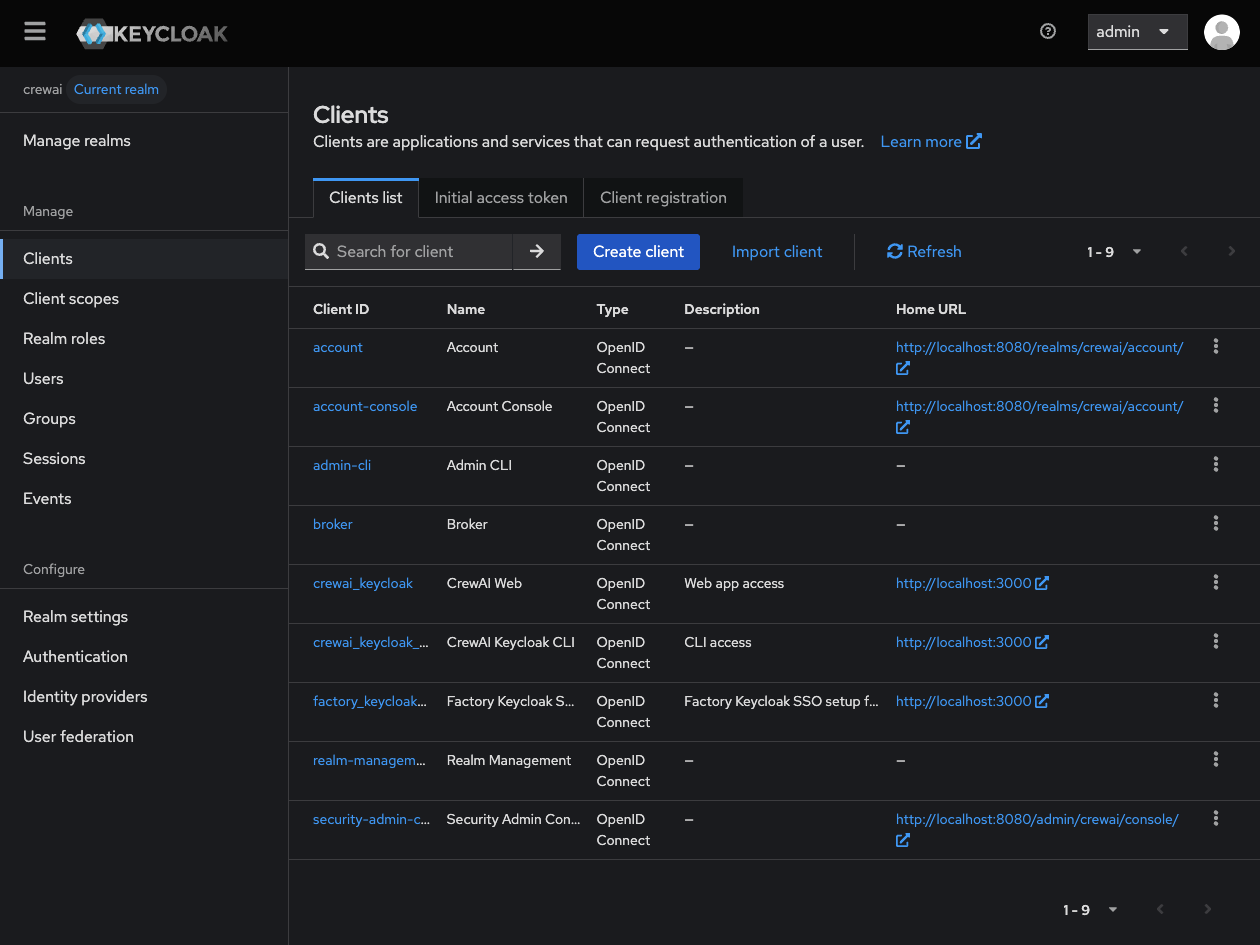
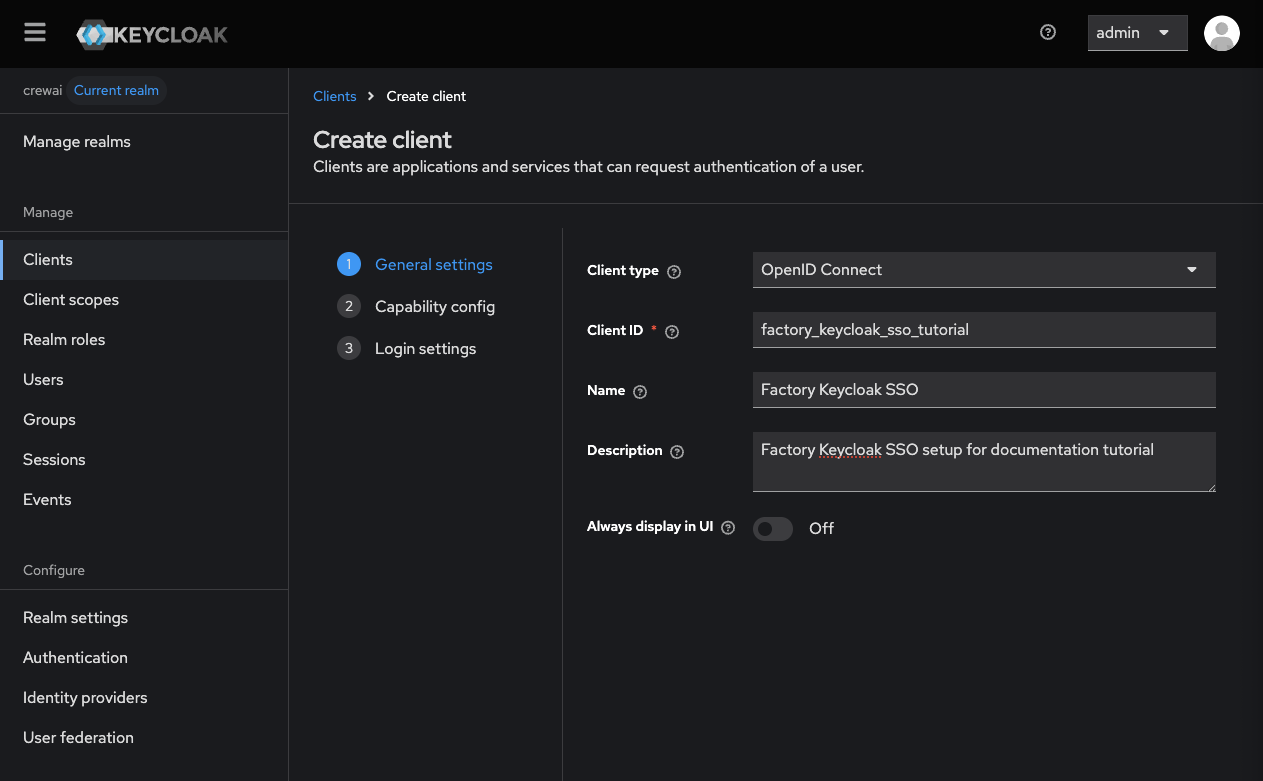
- Client type: OpenID Connect
- Client ID: Choose a client ID (suggested:
crewai-factory) - (Optional): Fill name and description fields.
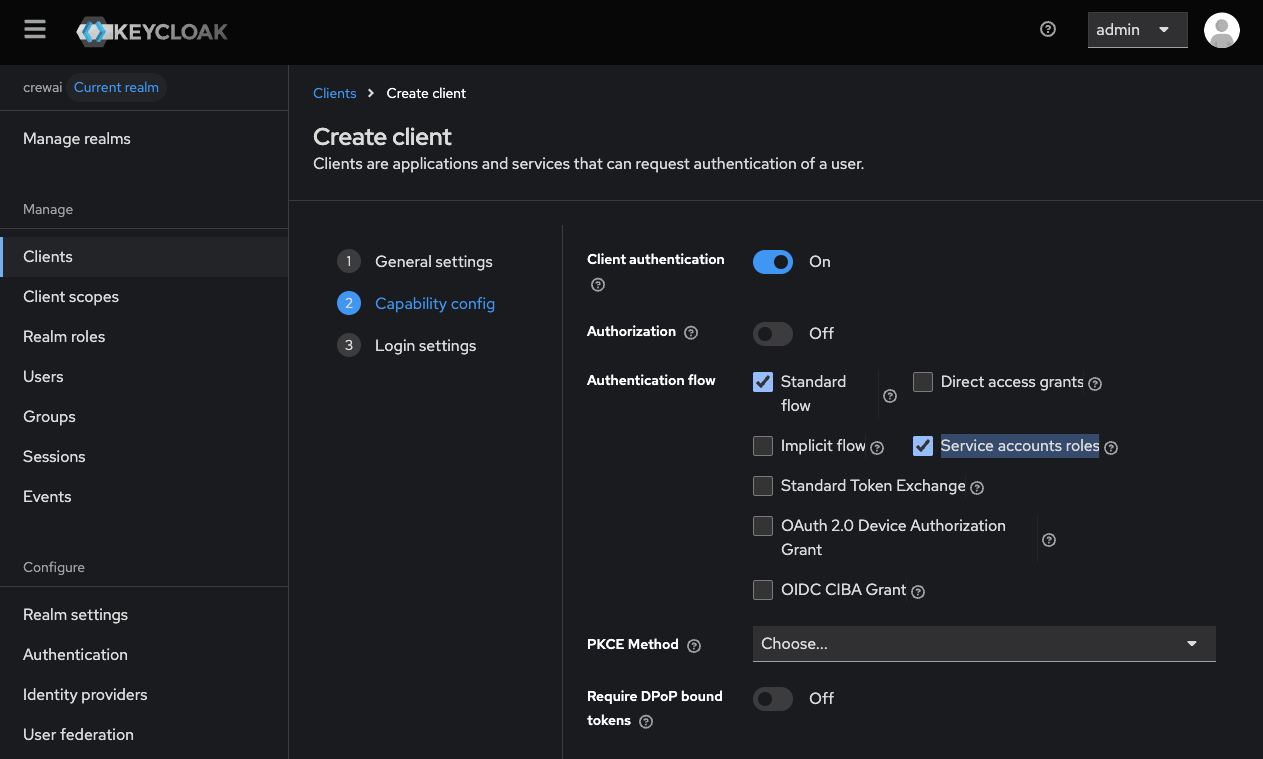
- Client authentication: On
- Authorization: Off (unless you need fine-grained authorization)
- Authentication flow: Check “Standard flow” (and “Service accounts roles”)
- Root URL: Your CrewAI Factory URL (e.g.,
https://myfactoryurl.crewai.com) - Home URL: Usually the same as the root URL.
- Valid redirect URIs: Add your CrewAI Factory URL with the callback path:
https://myfactoryurl.crewai.com/auth/keycloak/callback - Valid post logout redirect URIs: Your CrewAI Factory URL (e.g.,
https://myfactoryurl.crewai.com) - Web origins: Your CrewAI Factory URL or
+to allow all redirect URIs
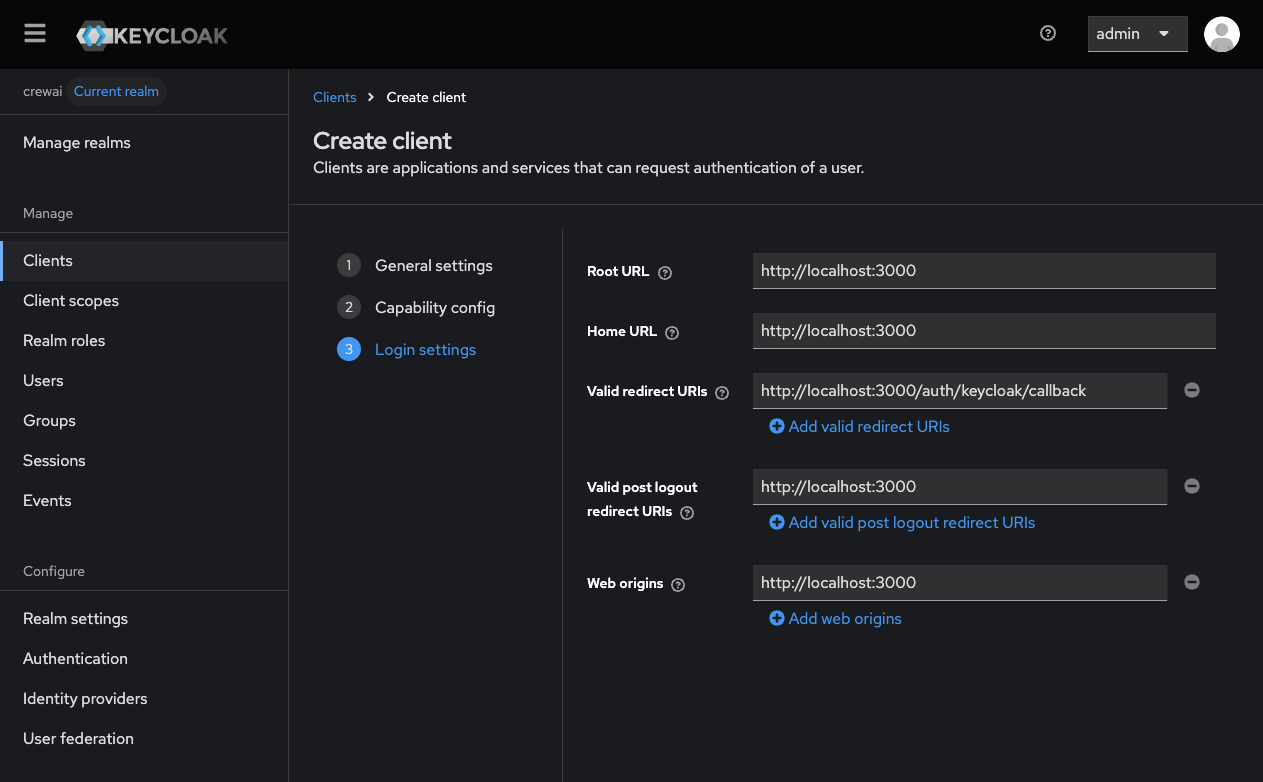
Collecting Credentials
With the client created, collect the necessary credentials for the CrewAI Factory environment variables.Client ID and Secret
In the client details page:- Client ID: Copy the Client ID you specified during creation. This value should be assigned to the
KEYCLOAK_CLIENT_IDenvironment variable.- In this tutorial, this value is
factory_keycloak_sso_tutorial
- In this tutorial, this value is
- Navigate to the “Credentials” tab and copy the Client secret. This value should be assigned to the
KEYCLOAK_CLIENT_SECRETenvironment variable.- In this tutorial, this value is
55oahEeruNQGWxqzleWy02cRfW3wLf2c
- In this tutorial, this value is
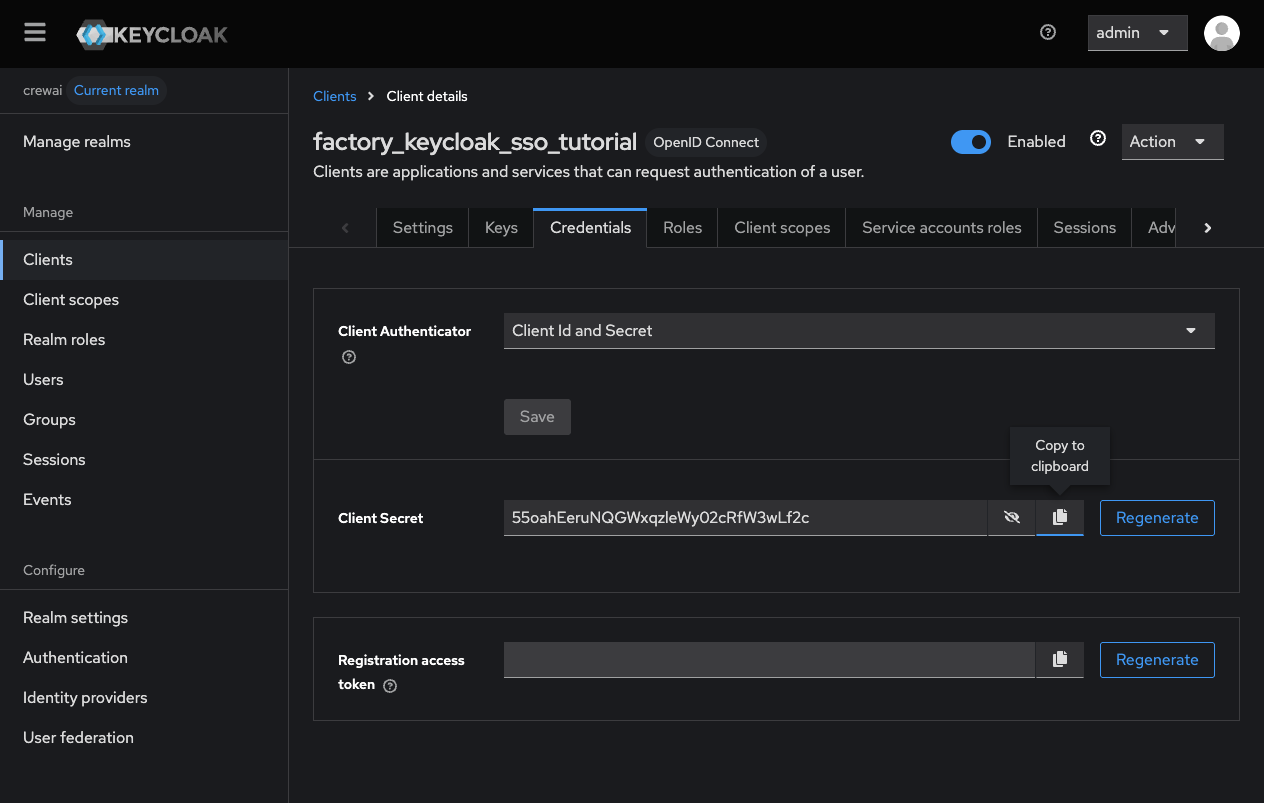
Realm, Site URL and Base URL
- Realm name: Note your realm name. This should be assigned to the
KEYCLOAK_REALMenvironment variable.- In this tutorial, this value is
crewai
- In this tutorial, this value is
- Site URL: Your Keycloak server URL (e.g.,
https://keycloak.yourdomain.com). This should be assigned to theKEYCLOAK_SITEenvironment variable.- In this tutorial, this value is
http://localhost:8080
- In this tutorial, this value is
- Base URL: Your Keycloak default context path (e.g. ‘/auth’ or a blank string). This should be assigned to the
KEYCLOAK_BASE_URLenvironment variable.- In this tutorial, this value will be not set, but you can obtain your base URL as follows:
- It is the value passed with
--http-relative-pathwhen you start up your keycloak instance - After keycloak 17, this is not set, so if you are using Keycloak 17+ without
--http-relative-path, you do not need to set the environment variable - If you migrated from 17 to a newer version and you kept the old default
/authfor example, you should pass/authto keep the backwards compatibility.
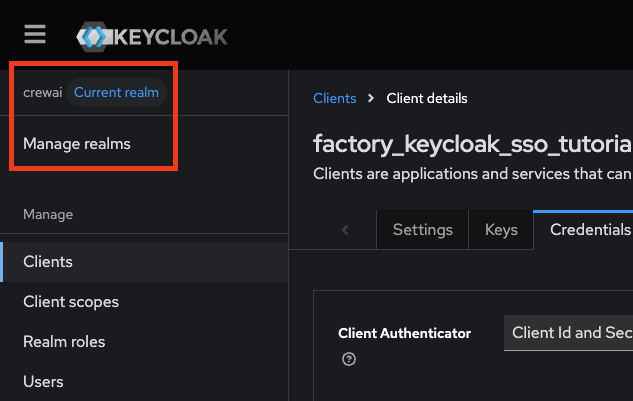
Managing Access
User Assignment
To control which users can access CrewAI Factory, you can, on step 2 of client creation, activate the “authorization” option. This will unlock a new “Authorization” tab on Client management where you can configure specific access policies for individual users or groups.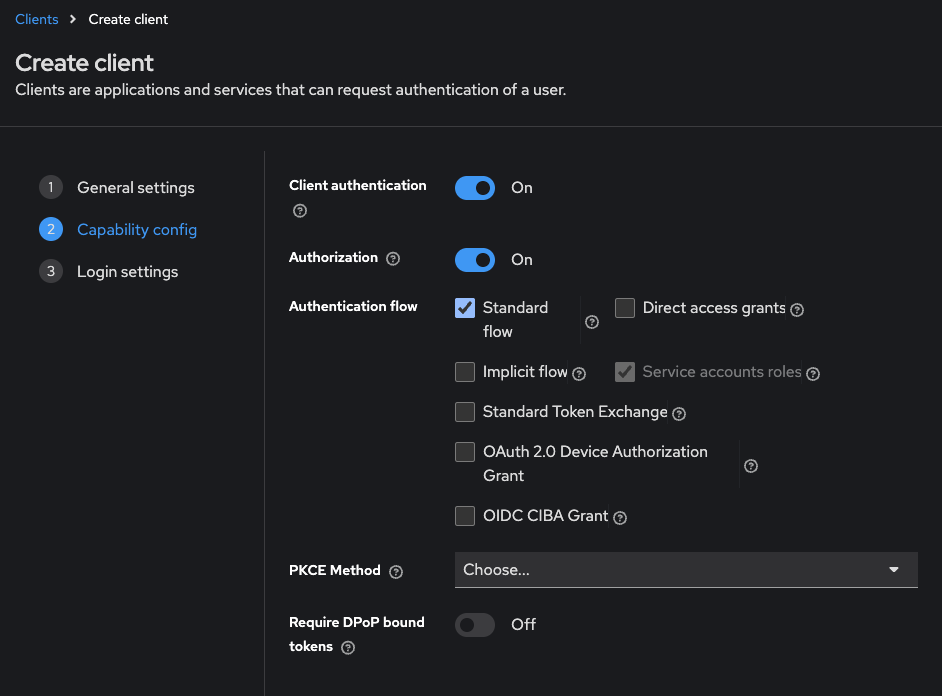
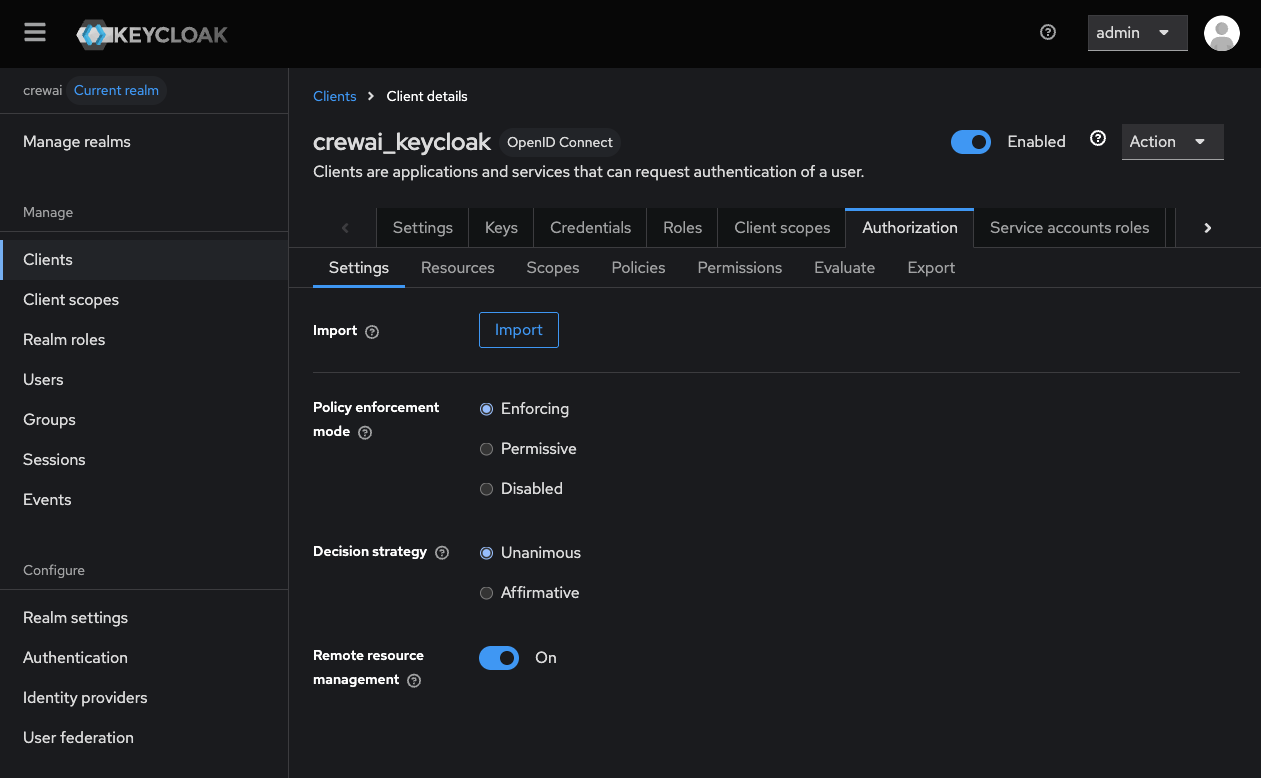
The exact access control configuration depends on your organization’s requirements and existing Keycloak setup.
Configure Group Claims for Team Mapping
- Open Clients → your CrewAI client → Client scopes and select the client’s dedicated scope.
- Select Add mapper → By configuration → Group Membership.
- Configure:
- Token Claim Name:
groups - Add to ID token: On
- Add to userinfo: On
- Add to access token: On
- Full group path: Off for group names, or On if CrewAI mappings will use full paths such as
/Engineering/Platform
- Token Claim Name:
- Save the mapper and verify that the UserInfo response contains a
groupsarray.
groups by default. Set SSO_GROUP_MEMBERSHIP_CLAIM_NAME only when the mapper uses another claim name.
See Keycloak’s Group Membership protocol mapper reference.
Environment Variables
With the credentials collected, add the following to yourvalues.yaml:
Configuring the Audience
By default, Keycloak includesaccount as the audience (aud claim) in access tokens. This is standard Keycloak behavior, and is supported by CrewAI Factory AMP and CLI.
For most installations, you can leave KEYCLOAK_AUDIENCE=account and no additional configuration is required. However, if you already use a custom audience or want to configure one, make sure to update KEYCLOAK_AUDIENCE accordingly. Below you will find a few resources that explain more about the default value of audience and guides on how to customize it.
Why is the default audience “account”?
Keycloak automatically addsaccount to the aud claim because it represents the built-in account management service. This behavior is documented in various community discussions:
- Keycloak mailing list discussion on audience claim
- Reddit discussion on OIDC access token audience
- Stack Overflow: How to remove account from aud claim
Using a Custom Audience
If your organization requires a custom audience value, you will need to configure it in Keycloak using client scopes and audience mappers. Update theKEYCLOAK_AUDIENCE environment variable to match your custom audience value.
For instructions on configuring custom audiences in Keycloak, refer to:
Combining With Other Features
- Wharf (trace collection): No additional values needed — Wharf is enabled by default. Ensure the
wharfdatabase is pre-created. See Wharf reference. - Studio V2: Configured entirely post-install via the web UI and
kubectl execcommands. See Enable Studio V2. - Built-in Integrations: Requires
oauth.enabled: trueand separate OAuth credentials. See Built-In Integrations. - ArgoCD / GitOps: Auto-generated secrets must be set explicitly. See the ArgoCD guide.
Map Keycloak Groups to CrewAI Teams
Follow SSO Team Mapping, using the exact group name or full path emitted in the configured claim as the CrewAI mapping’sgroup_name.
The Full group path mapper setting and CrewAI mapping values must agree.
Configure the CLI to use Keycloak as your OAuth2 provider
To enable CLI authentication with Keycloak, you need to configure the Device Authorization Grant flow.Enable Device Authorization Flow
Navigate to your Keycloak admin console, and refer to the steps below to create a new client that supports the device authorization flow:Creating a Client for logging in to the CLI
In the left sidebar, click “Clients”, then click “Create client”.- Client type: OpenID Connect
- Client ID: Choose a client ID (suggested:
crewai-factory-cli) - (Optional): Fill name and description fields.
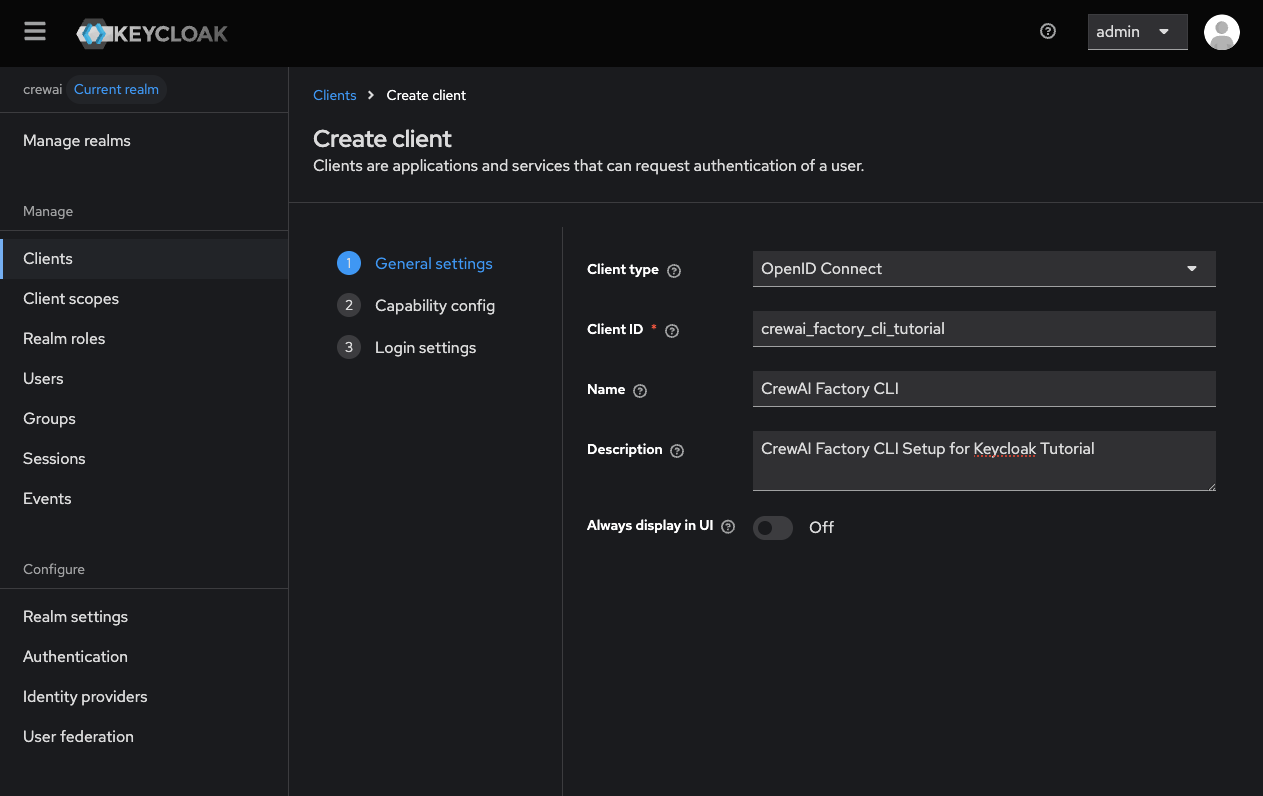
- Client authentication: Off
- (Device authorization grant requires the client to be public)
- Authorization: Off
- Authentication flow: Check ONLY “OAuth 2.0 Device Authorization Grant”
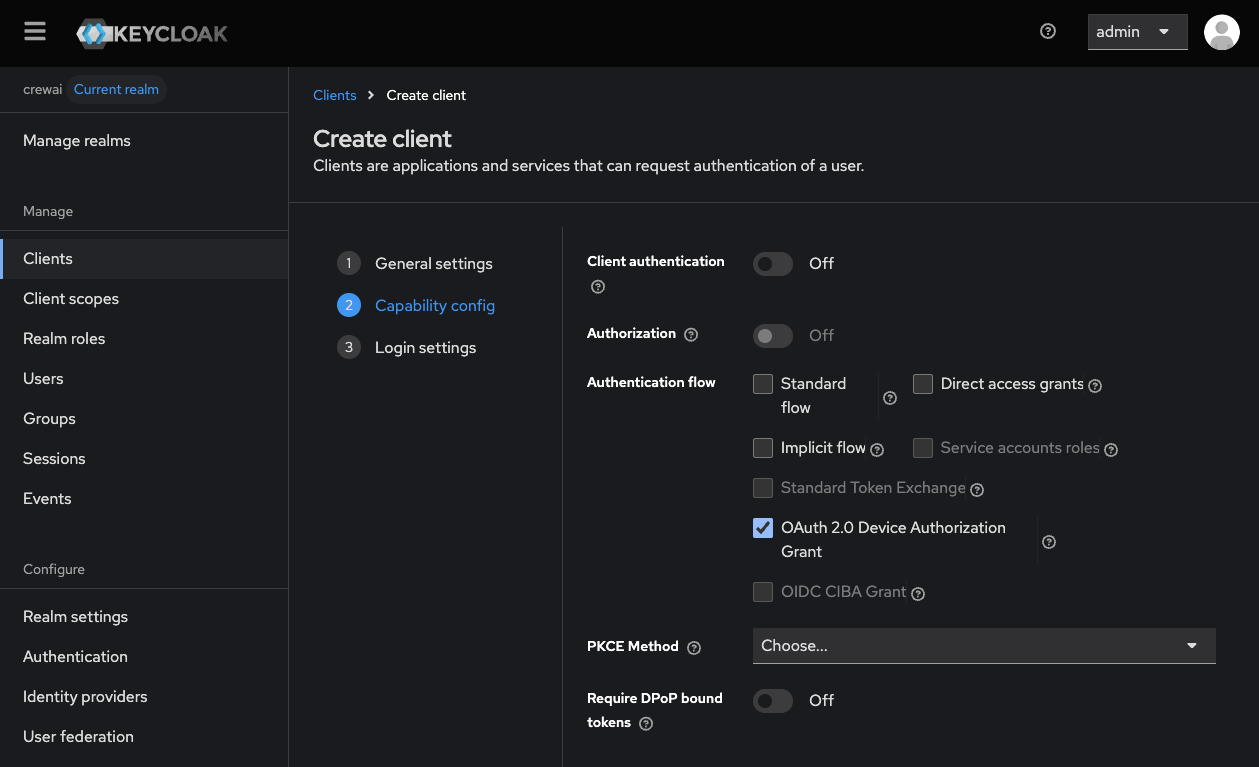
- Root URL: Your CrewAI Factory URL (e.g.,
https://myfactoryurl.crewai.com) - Home URL: Usually the same as the root URL.
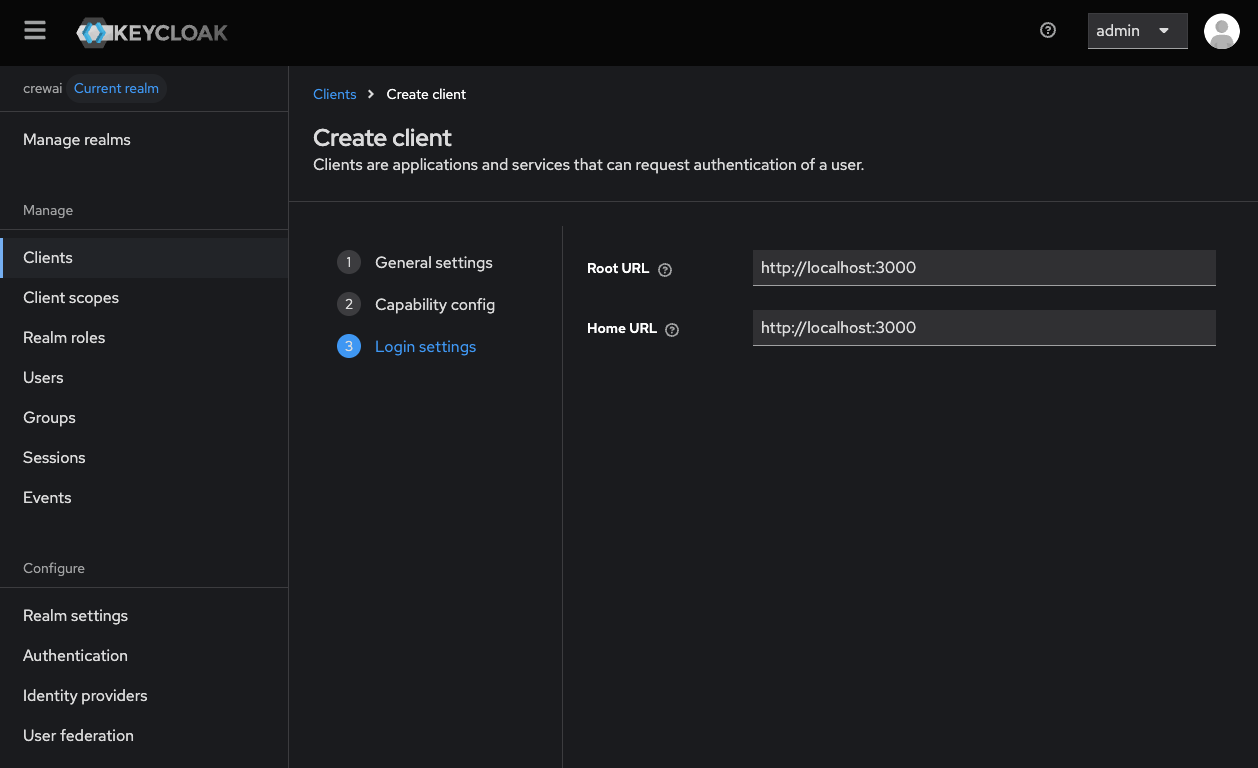
Additional Environment Variables
Add the following environment variable to your CrewAI Factory installation to enable CLI authentication:CLI Configuration
Now you are ready to configure your enterprise CLI login. Make sure yourcrewai CLI is version 1.9.0 or higher. To configure the Keycloak provider, run the following command:
Common Issues
- Invalid redirect URI: Ensure the redirect URI in Keycloak exactly matches your Factory URL with
/auth/keycloak/callback - Client authentication failed: Verify the client secret is correctly copied and the client authentication is enabled
- User not authorized: Check that the user has the appropriate roles/group membership to access the application
- Invalid Audience: Check that the audience being sent by keycloak is the same one set on
KEYCLOAK_AUDIENCEenvironment variable